Install on Windows
- ▸Windows 10+
- ▸Requires Webcam and Stable Internet
- ▸Content Protection
- ▸Flag Suspicious Actions
- 1Click the button below to download OriginisSetup.exe.
- 2Open the downloaded file. If Windows shows a SmartScreen warning, click More info then Run anyway.
- 3Follow the installer steps to complete the installation.
- 4When prompted with “Microsoft(C) Register Server”, click Yes to install the virtual camera.
- 5Launch Originis from your desktop or Start menu and enter the exam code provided by your instructor.
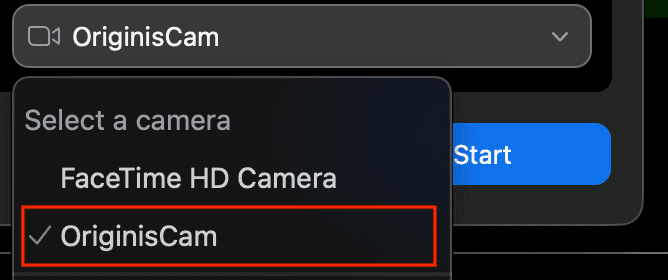
- 6If you use a video conferencing app (Zoom, Google Meet, etc.), select Originis Web Cam as your camera source.
Need help? Contact support